Submit an access request that matches the building's rules
Create a task when you need to start a building workflow, such as a visitor, construction, garrison, or general request. One task can create several related tickets; complete the forms VMS presents for that task.
Before you start
- You have joined the target building and can create tasks.
- The building has an available template for the request type.
- For visitor requests, the visitor already exists in My Visitors. For contractor-related work, the building must already list the relevant qualified personnel.
Create and submit the task
- 1. Choose the application
- 2. Check every ticket
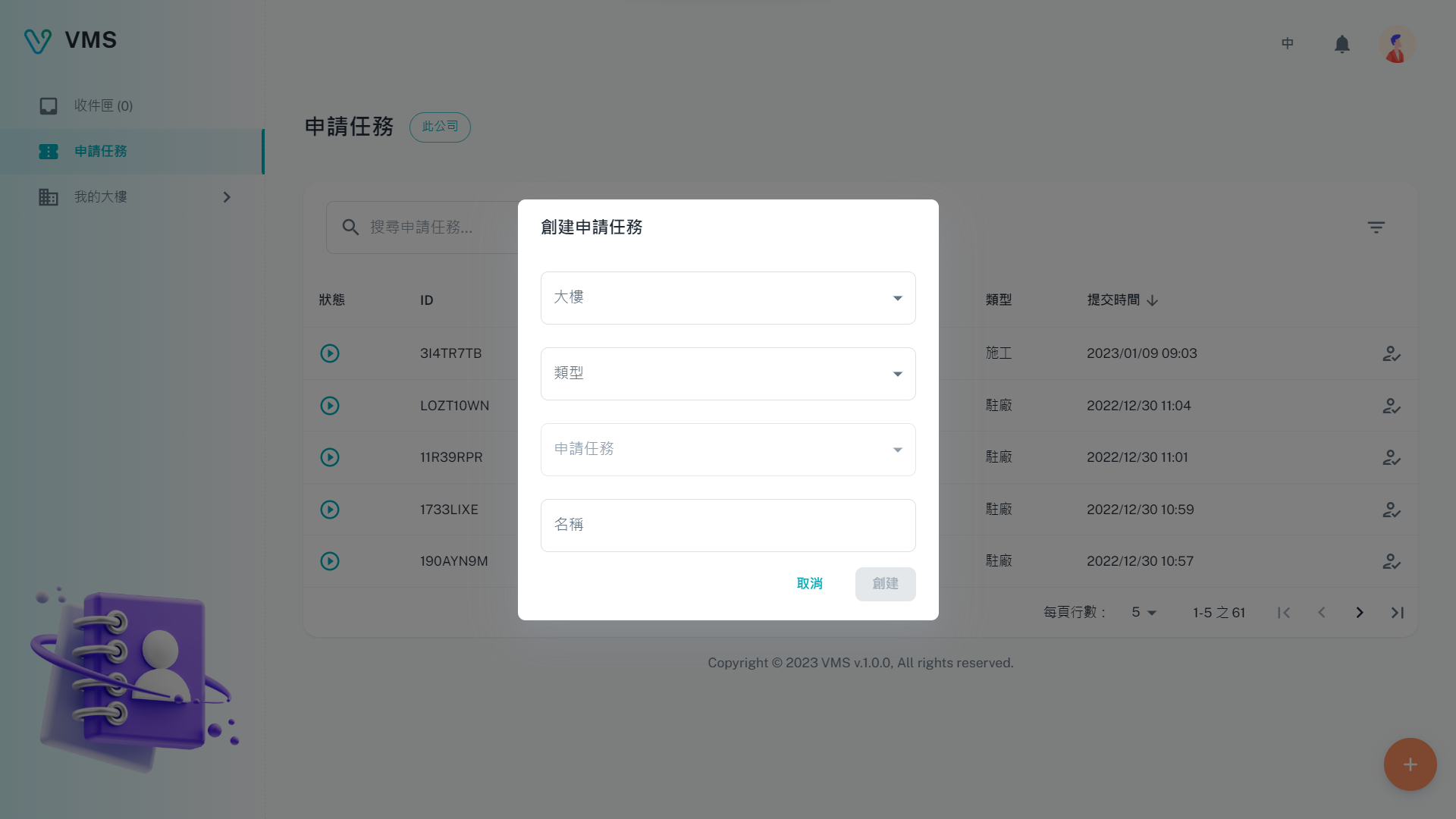
Check the building and application type before selecting a template. The current dialog then guides you through the applicable forms.
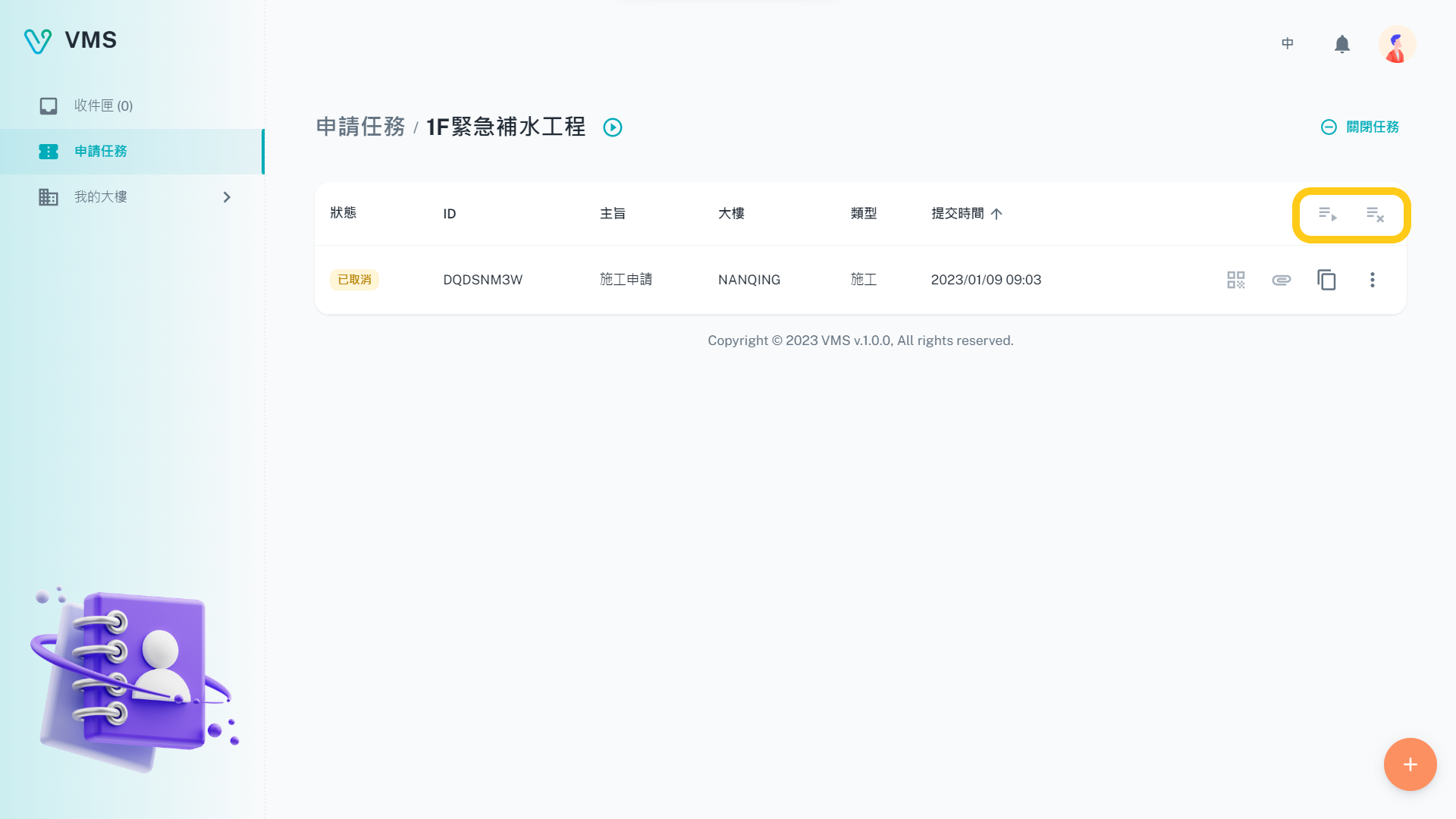
Check each ticket status separately. This earlier example contains a cancelled ticket; a visible task does not by itself mean entry is approved.
This earlier screenshot illustrates the feature. The current layout and button labels may differ.
- Open Tasks and select Create.
- Select the building, then select the request type. VMS loads the templates available for that combination.
- Select the task template, enter a task name, and choose Create. If the template list is empty, the building has no valid template for that selection.
- Open each active ticket tab and complete the fields marked required. Select Create or Apply when the task dialog is ready to submit.
Outcome: VMS creates only the tickets that apply to the answers and sends the completed task into its configured workflow.
Add, copy, update, or end a ticket
- Open the task from the list to see all of its tickets and their current status.
- Select Create Ticket only when the add button is available. VMS disables it while a ticket is Standby or Standby Ready, or when the task is Closed or Locked.
- To reuse a ticket, select its Copy & Create icon. Copying is unavailable for a Standby, Standby Ready, or closed ticket, and for a closed task.
- Open a ticket to take the actions VMS makes available for your current step: Activate, Submit, Agree, Reject to Applicant, Disagree, Cancel, or Abandon. The exact actions come from the workflow; write any required note before submitting.
- The task owner can use Edit Ticket Content only while the ticket is Running or Standby Ready and the current workflow step permits it. A closed ticket cannot be edited or deleted from its row menu.
- Close a task only after every ticket is Closed or Cancelled. A closed or locked task cannot be closed again, and a closed task cannot receive new tickets.
For a construction task, the QR Code action becomes available only when that ticket is Closed. For a visitor ticket, the ticket toolbar can download the guest-pass list only after it is Closed and it has guests.
Complete conditional and optional forms safely
Some templates ask an earlier question to decide which later tabs, sections, or fields apply.
- Answer the controlling question first and complete the fields that appear.
- If you change an answer and a field no longer applies, its value, validation state, and attached files are cleared by default. A template can explicitly retain a hidden value, so review the visible form before submitting.
- Leave an optional ticket completely blank to skip it. Once you enter any value in an optional ticket, complete its visible required fields before submission.
- Resolve every validation message. VMS checks all active required tickets and visible required fields; a required ticket that has not been completed prevents submission.
Static notes in a form are instructions from the template, not fields to answer. They also appear when the ticket is viewed or printed.
Use the newer field types
- Tenant user selector: choose one or more users from your tenant company when the template provides this selector. Whether it accepts one person or many is set by the template.
- Date range: select an end date on or after the start date. If the template sets a maximum number of days, the end date cannot exceed that range.
- Visitor selector: search the visitor directory and choose the existing visitor record. Create the visitor first if it is not listed.
Find the next action
Use the search box to search task names across the available list. Use Filter to narrow the list by request type, building, company or current user, and open-task state; sort table columns when you need a different order. VMS loads more tasks as you move through the list.
After submission, open the task to see its tickets and states. Use Inbox when a ticket is assigned to you, or My Visitors if a visitor record needs updating.
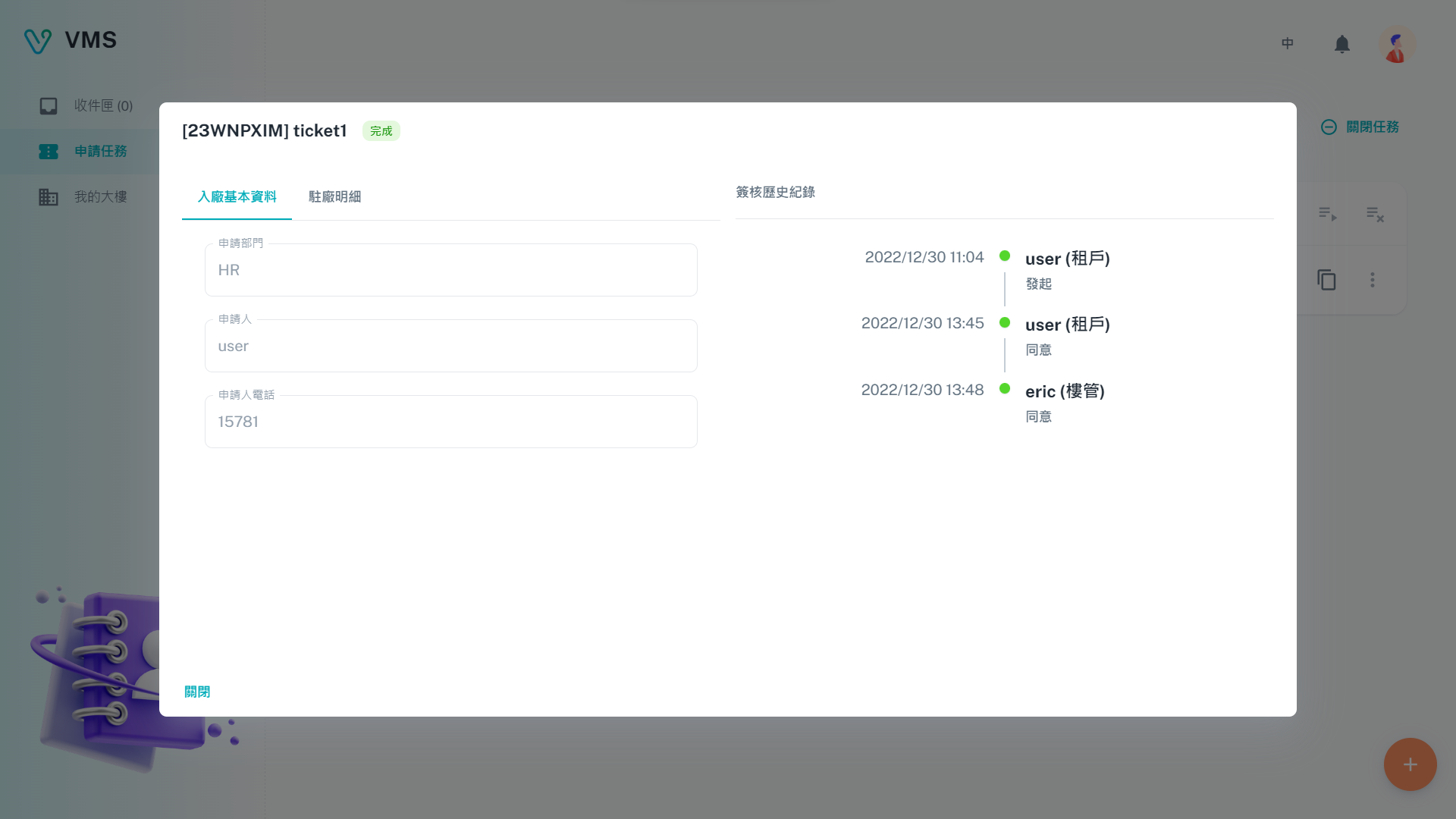
Open a ticket to compare its submitted content with the approval history. The current version also shows more detailed progress.
This earlier screenshot illustrates the feature. The current layout and button labels may differ.
Read a status before choosing an action
| Status | What it means | What to do |
|---|---|---|
| Task: Opened | A new task has started. | Complete its active tickets. |
| Task: Error | VMS or the workflow reported a problem. | Read the status detail and contact an administrator if it remains. |
| Task: Locked | An administrator has locked the task. | Do not edit or close it; contact the administrator. |
| Task: Closed | The task is finished. | It cannot receive tickets or reopen. |
| Ticket: Standby | Its content is not yet complete. | Complete the visible required form. |
| Ticket: Standby Ready | The ticket is ready for its next available workflow action. | Open it and follow the action offered. |
| Ticket: Running | It is being processed or approved. | Follow the timeline or act if it is assigned to you. |
| Ticket: Declined, Cancelled, or Done | The workflow has reached that result. | Read the history; create a new request only if the building requires one. |
| Ticket: Error | The ticket has a problem. | Read the status detail and contact an administrator if needed. |
Troubleshooting
- A ticket or field disappeared. Recheck the answer that controls it; changing that answer can make later content inapplicable.
- I cannot submit. Fill every visible required field in each active ticket. An optional ticket with any entered data also needs to pass validation.
- The template is unavailable. Try the correct building and request type, then ask the building manager to configure a valid task template.
- The date range is rejected. Check the order of the dates and the maximum days stated by the form.
- I cannot add or copy a ticket. Check for a Standby or Standby Ready ticket, then confirm the task is not Closed or Locked.