Review a ticket and see where approval stands
Use Inbox when a ticket needs your decision or when you need to check its approval progress. Open the ticket before acting so you can review the applicant's visible form answers, attachments, and approval history.
Before you start
- Sign in with a verified email address.
- You must be the current authorized approver to make an approval decision.
- Check the building, applicant, and requested dates before you choose an action.
Approve or return a ticket
- 1. Open the pending request
- 2. Review before acting
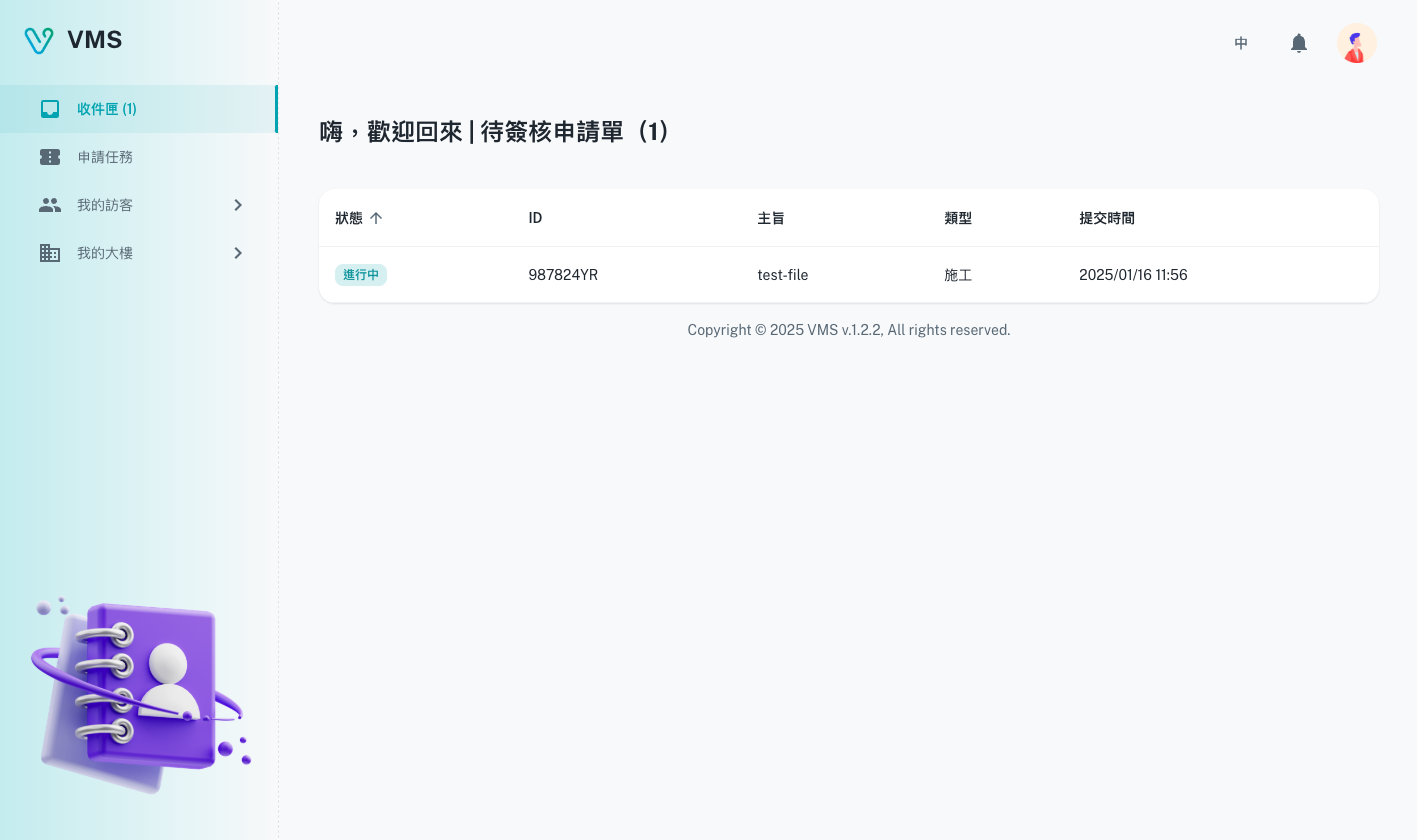
Find the request that needs your action in Inbox and open its details before approving.
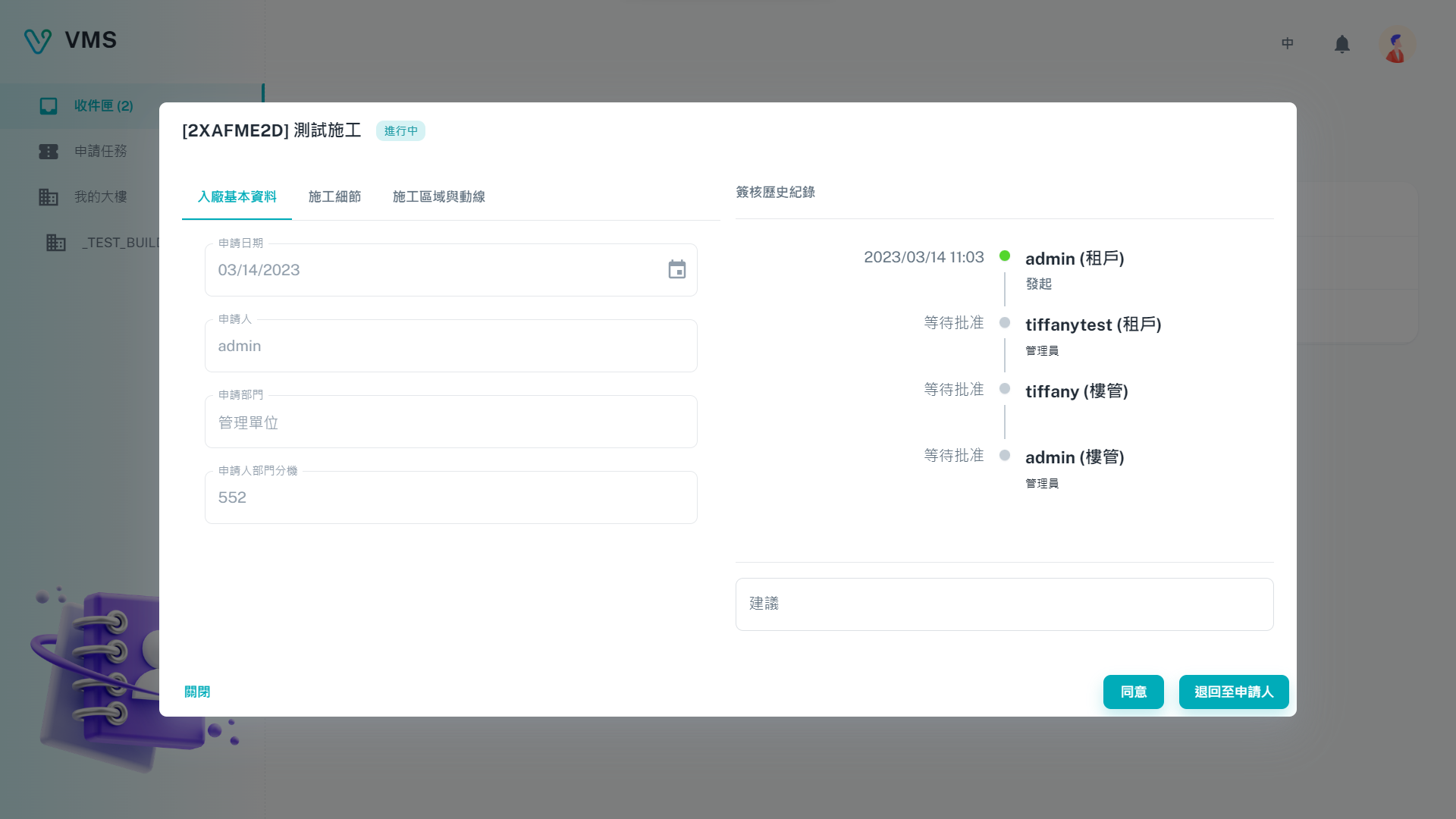
Read the content and approval history, then choose an action that is available to your account.
This earlier screenshot illustrates the feature. The current layout and button labels may differ.
- Open Inbox and select the ticket.
- Review the ticket's form tabs and attachments. Conditional forms show only the fields that apply to the submitted answers.
- Read the approval timeline. It identifies the current step, the role VMS is waiting for, completed or rejected steps, timestamps, and any approval note.
- If an action is available to you, choose the appropriate decision. When a note is required, enter a clear reason of no more than 30 characters.
- Submit the decision and return to Inbox. The ticket either moves to the next step, returns for changes, or reaches its configured end state.
You cannot approve your own ticket: VMS clears the current user from approver choices when the ticket is prepared.
Print a ticket with its usable attachments
- Open the ticket and select the Print icon.
- Wait for previews to load, then use the browser print dialog to print or save the result.
- PDF attachments are rendered as pages, images are included as images, and text attachments are printed as text. Unsupported files remain listed by name.
The printout includes visible ticket answers, static notes, and the approval information shown by the ticket.
Next steps
- Need to correct the request? Return to Tasks when the workflow makes it available to the applicant.
- Need to create or correct a selected visitor? Go to My Visitors.
Troubleshooting
- I can view the ticket but cannot act. Another person or role is the current approver; use the timeline to identify the current step.
- My decision will not submit. Enter the required note, keep it within 30 characters, and complete any required before-action fields.
- An attachment does not appear in the print preview. Wait for it to load. PDFs, images, and text are previewed; another file type is printed as its filename only.