Verify a visitor before entry
Use Guest Applications to find a guest booking, review its visitor list, record entry or exit events, and check pre-entry evidence. Some operations require an administrator or the building control password.
Find the booking you need
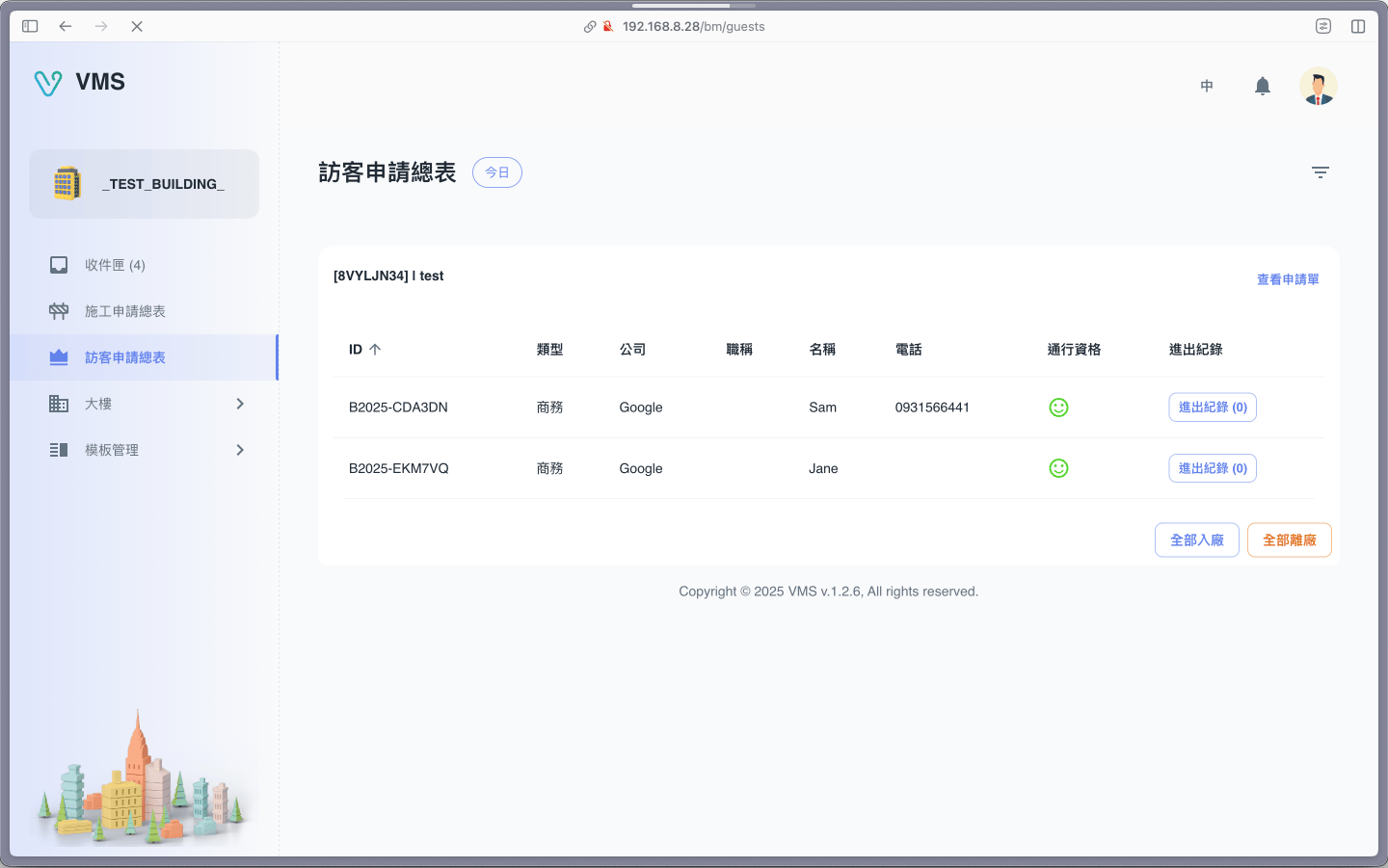
Find the visitor and check eligibility before opening access records. Newer entry-document and note features are explained in the guide.
This earlier screenshot illustrates the feature. The current layout and button labels may differ.
- Open Guest Applications and apply the date range, tenant, visitor type, or other available filter. The page groups matching bookings into application cards.
- Open the guest list on the required card. You can see the booking ID, visitor identity, company, contact details, event records, and entry status.
- Use Check ticket when you need the original application and approval context.
Record an arrival or departure
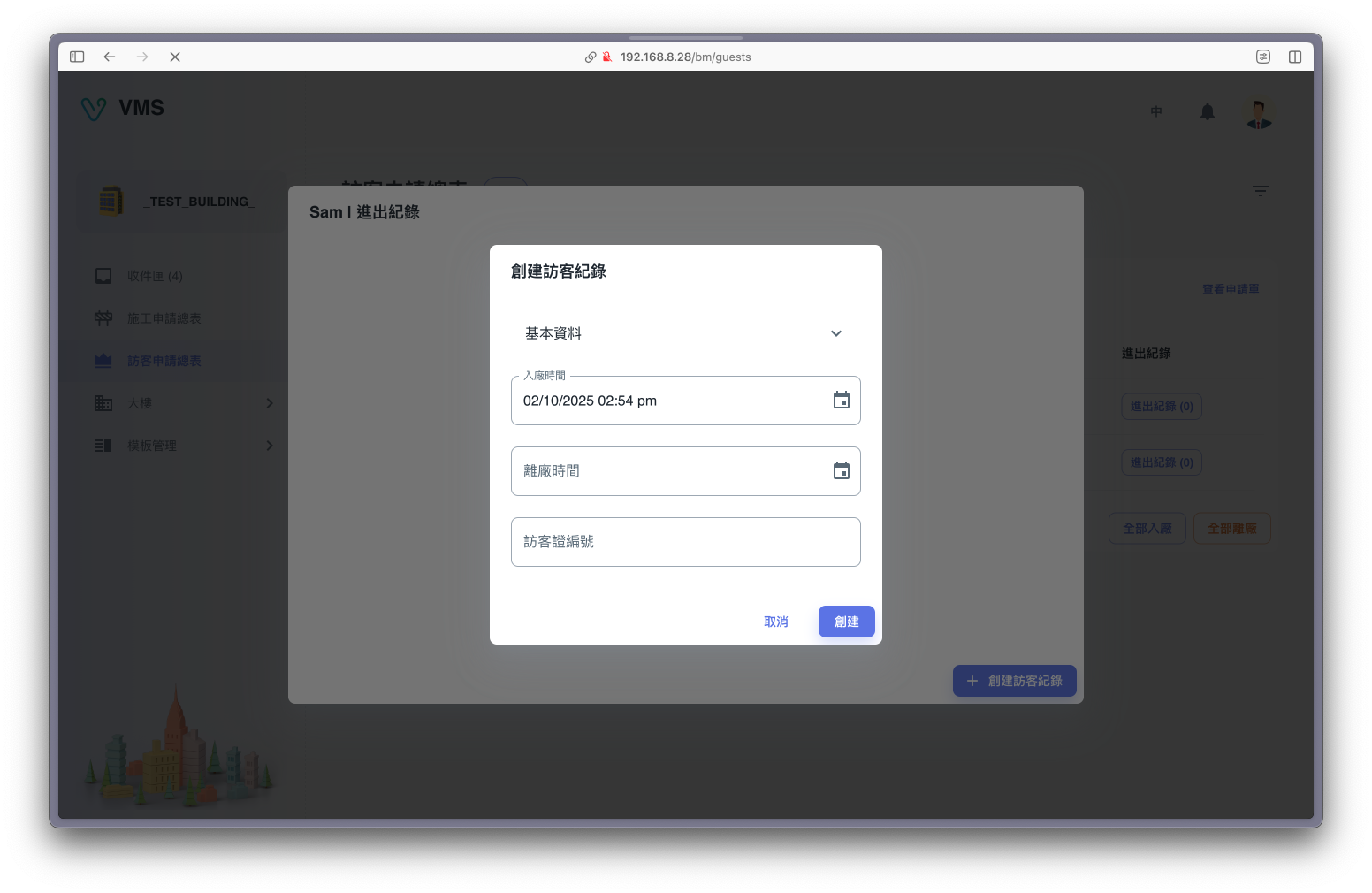
Confirm the person and actual entry or exit before recording an event according to site procedures.
This earlier screenshot illustrates the feature. The current layout and button labels may differ.
- In the guest list, choose Create Event for one visitor, or use the card action for all visitors.
- Enter the check-in or check-out time and guest-pass information, then save. The event becomes part of that visitor’s history.
- Open Events to correct an event or review the full entry/exit list.
Audit pre-entry documents and notes
- Select Pre-entry requirements when the button shows one or more files. It is unavailable until the visitor has submitted files.
- In the side drawer, search by guest or note and narrow the date range. Each row identifies submission and supervisor-signature status.
- Choose View to open the note detail, inspect captured answers and attachments, and select Print for a printable audit record.
Export only after setting the desired filters; the download uses the current result set. Continue to Events for building-wide records.