Add a licensed scanner and investigate one scan
Administrators use ID Scanners to manage devices under each license. A license card shows its activation limit and expiry; expanding it lists its scanners.
Add or update a device
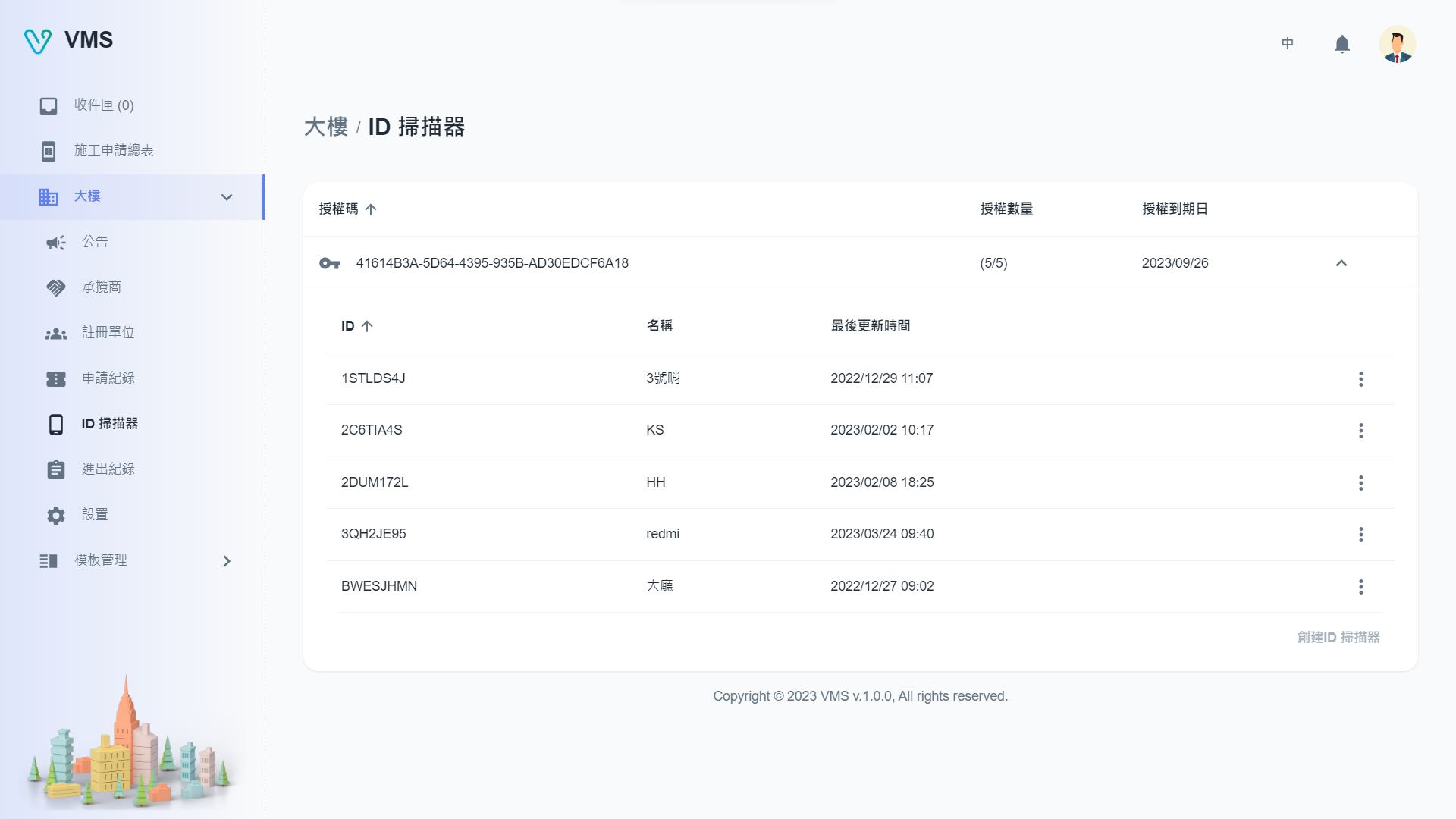
Find the building’s scanner and check its configuration before reviewing its scan events.
This earlier screenshot illustrates the feature. The current layout and button labels may differ.
- Expand the required license and select Create while it has unused activations.
- Enter the scanner name and, when the building uses OWL, its optional buddy ID. Save to add it to that license.
- Use a scanner row’s More menu to edit or delete it. Deletion is confirmed and cannot be undone.
Find a scanner event
- Select a scanner row to open its event log.
- Search by clock-in user name and choose today, week, month, year, or a custom date range. Results are fetched a page at a time, so use page controls for a long log.
- Select the ticket icon on an event that has a ticket ID. The related ticket opens for investigation.
If Create is disabled, the license has reached its activation limit. If no event appears, broaden the date range and check the name search.