Make a contractor worker ready for a construction ticket
Use Contractors to maintain main contractors and their personnel. Personnel must be in this building and qualified before tenants can select them for construction or garrison work.
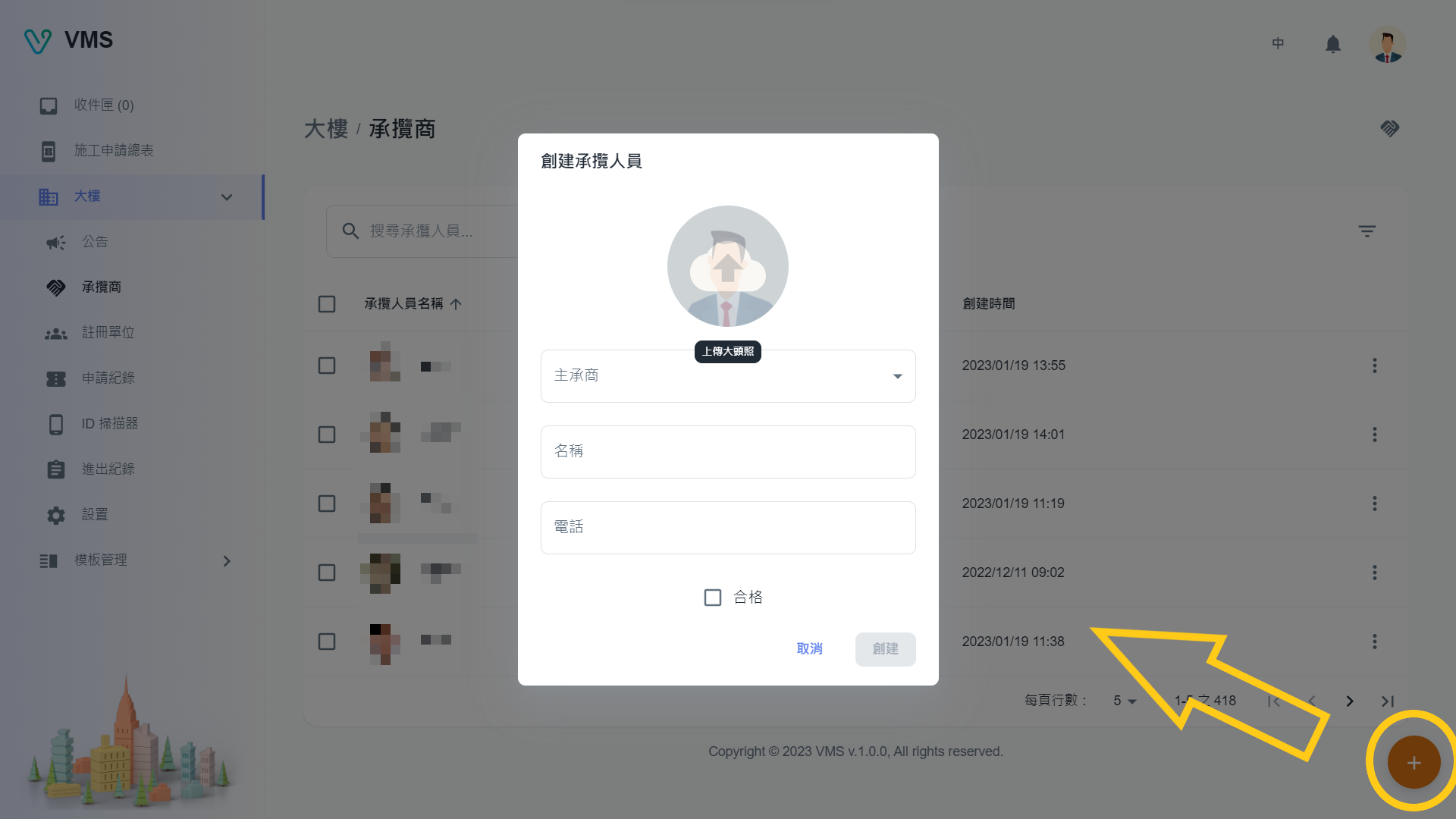
Create the company, then the person
- Open contractor management and choose Create. Enter the company type, name, representative, and representative phone; add address or remarks when useful.
- Save the company, then create personnel with an avatar, main contractor, and name. Add phone and qualification details.
- Mark the person qualified only after verifying information and required evidence. Qualified personnel become selectable in matching tickets.
Keep attachments current
- Use More > Attachments on either a contractor or personnel row.
- Upload or update the fields configured in Settings > Contractor or Personnel.
- Check the visible attachment status. A missing or expired date-based attachment needs a new valid value before the record meets site requirements.
The contractor and personnel More menus also provide editing and deletion. Export personnel as Excel for a list or as system JSON for transfer; choose all contractors or selected contractors. To import, first export the system JSON, then use the toolbar Import to upload that JSON. The active import dialog accepts system-generated JSON and reports duplicates, missing contractors, avatars, and attachments.
Give a qualified person an access code or training pass
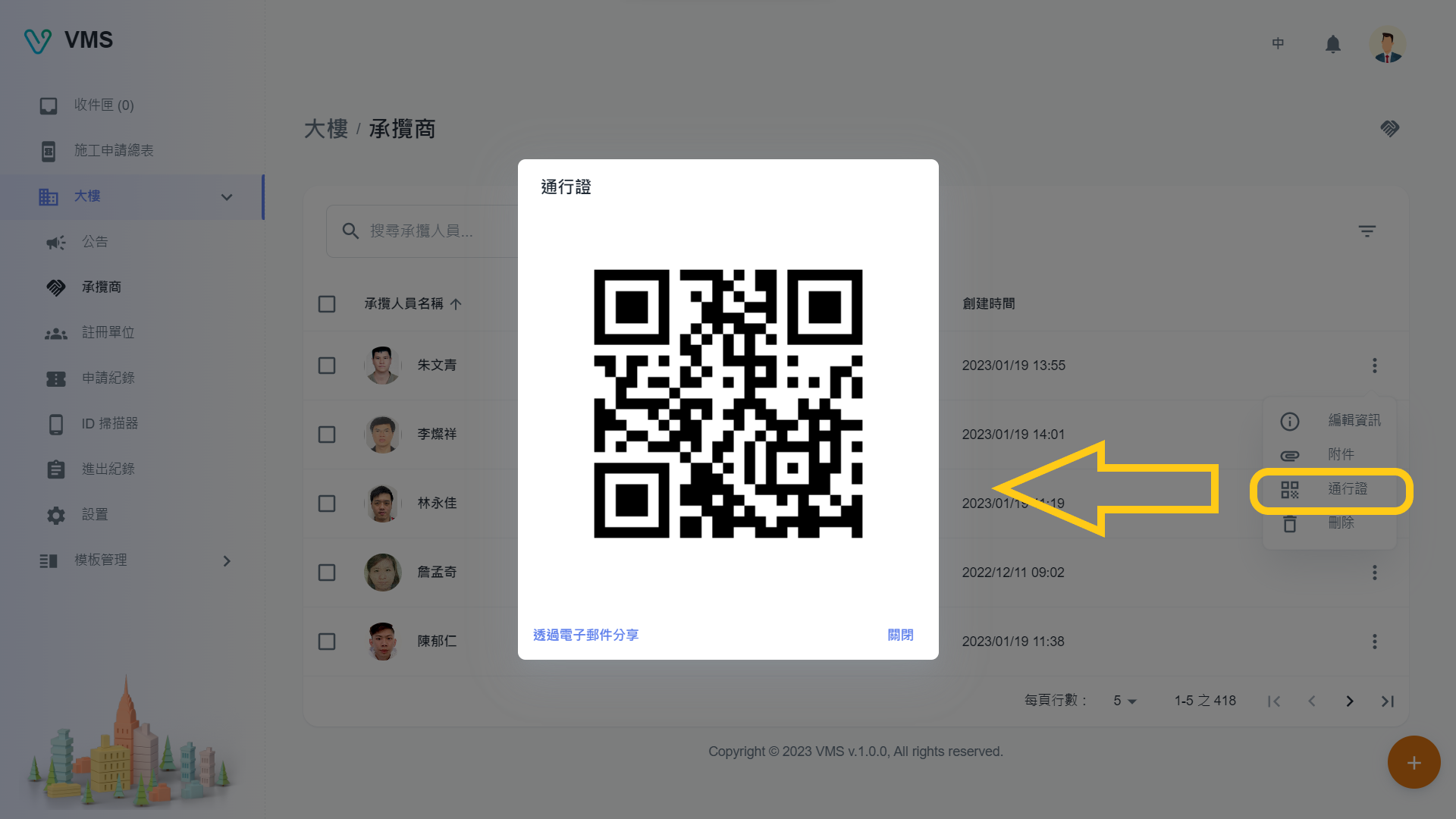
- On a personnel row, choose More > Pass to open its access-code dialog. Share the code by email or download the code image for the person to present in the supported access workflow.
- Choose More > Training Pass to download that person’s pass. Use the page Training Pass action to generate passes for multiple eligible personnel; a person without an avatar cannot receive the pass, and bulk generation is disabled above 80 selected personnel.
- Use the training-pass template workflow to maintain the downloaded pass format when the building needs a different layout.
Troubleshooting: create the main contractor before personnel. If a tenant cannot select a worker, check building membership, qualification, and required attachment status.