Building Manager route
Help tenants start applying and help on-site staff check who can enter. Follow the work in order: onboard a unit, prepare its application flow, then handle daily requests.
A new unit is moving in: invite its administrator
Scenario: a new unit needs an account and access to this building.
Before starting, use a verified BM administrator account and prepare the unit name, username, and email address.
- 1. Find the unit
- 2. Invite the administrator
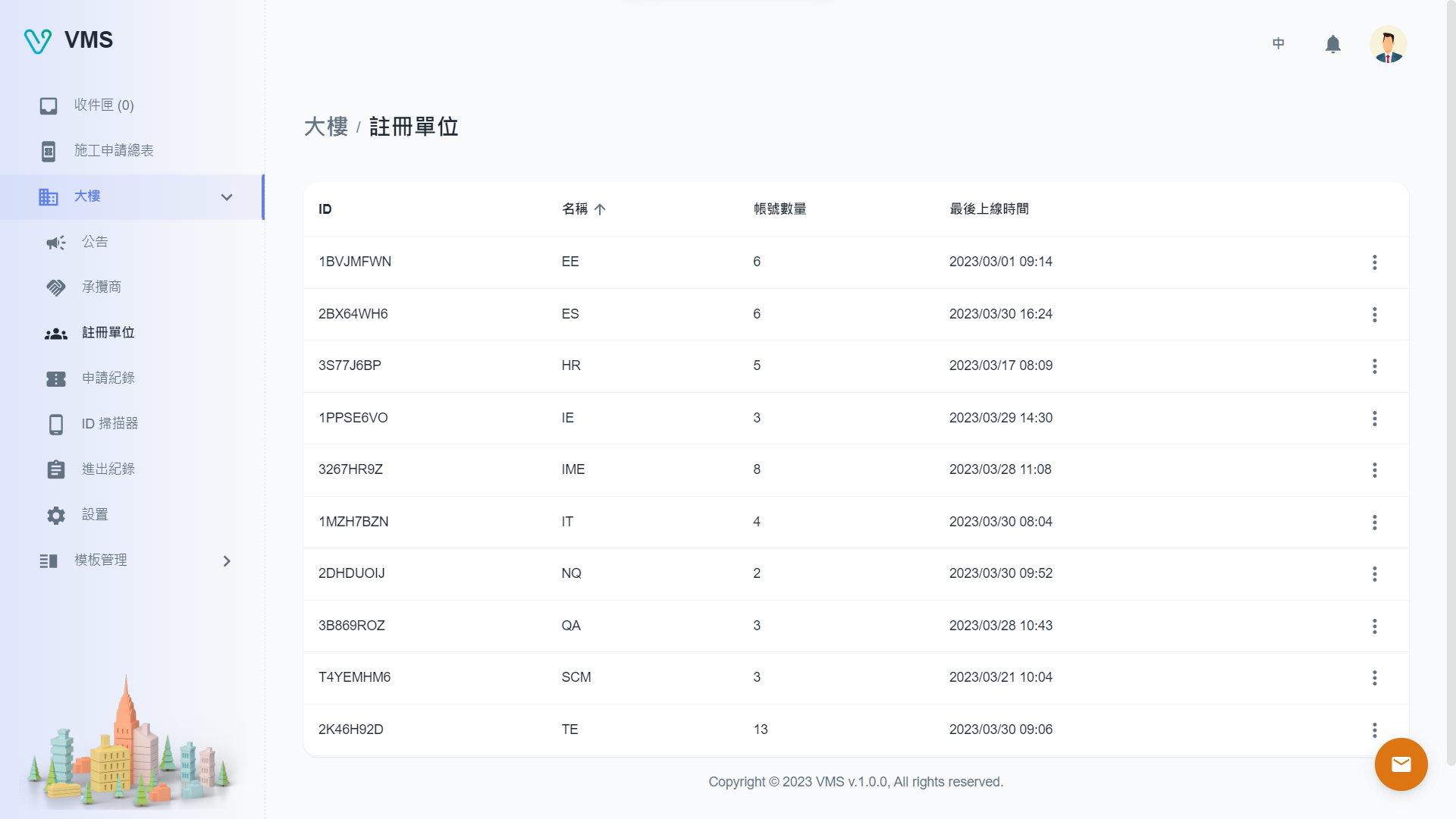
Search the building’s registered units before sending another invitation.
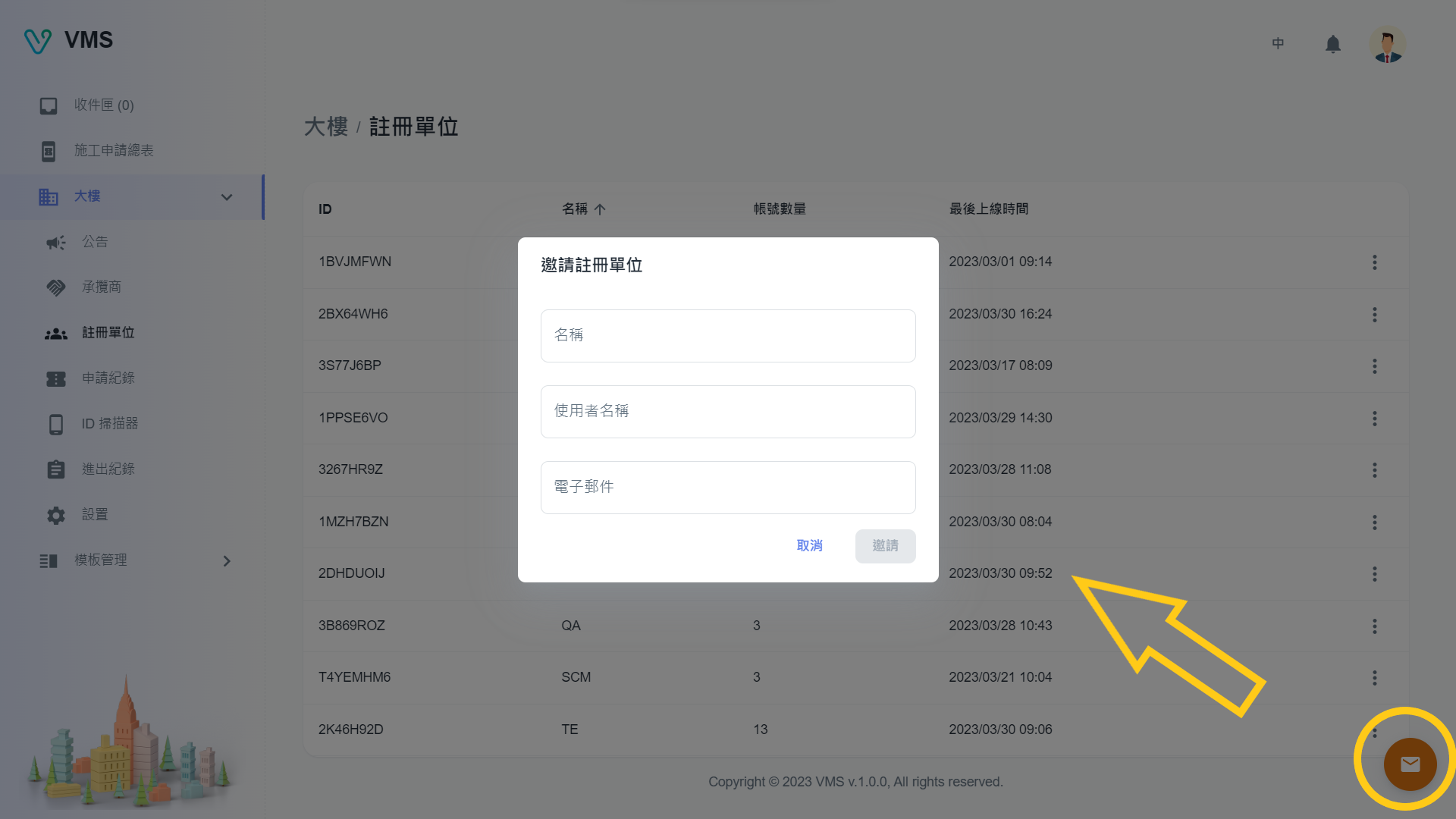
Enter the unit name, username, and email. The recipient joins the building by completing registration from this invitation.
This earlier screenshot illustrates the feature. The current layout and button labels may differ.
- Sign in to BM and check that the correct building is selected.
- Open Building > Registered Units and search for the unit first.
- If it has not joined, open the invitation action, enter the unit name, username, and email, then select Invite.
- Ask the recipient to register through the notification link, then check the resulting unit and account.
Check the result: after registration, the invited unit joins directly. This route does not create a task or require a separate join-building approval.
Tenants applying themselves need a valid join-building template. Compare the routes in Registered Units.
Prepare construction applications: people first, then forms
Scenario: tenants will soon apply for construction access and must be able to select qualified people and complete the right forms.
- 1. Prepare contractors
- 2. Start with a form template
- 3. Combine forms into a task
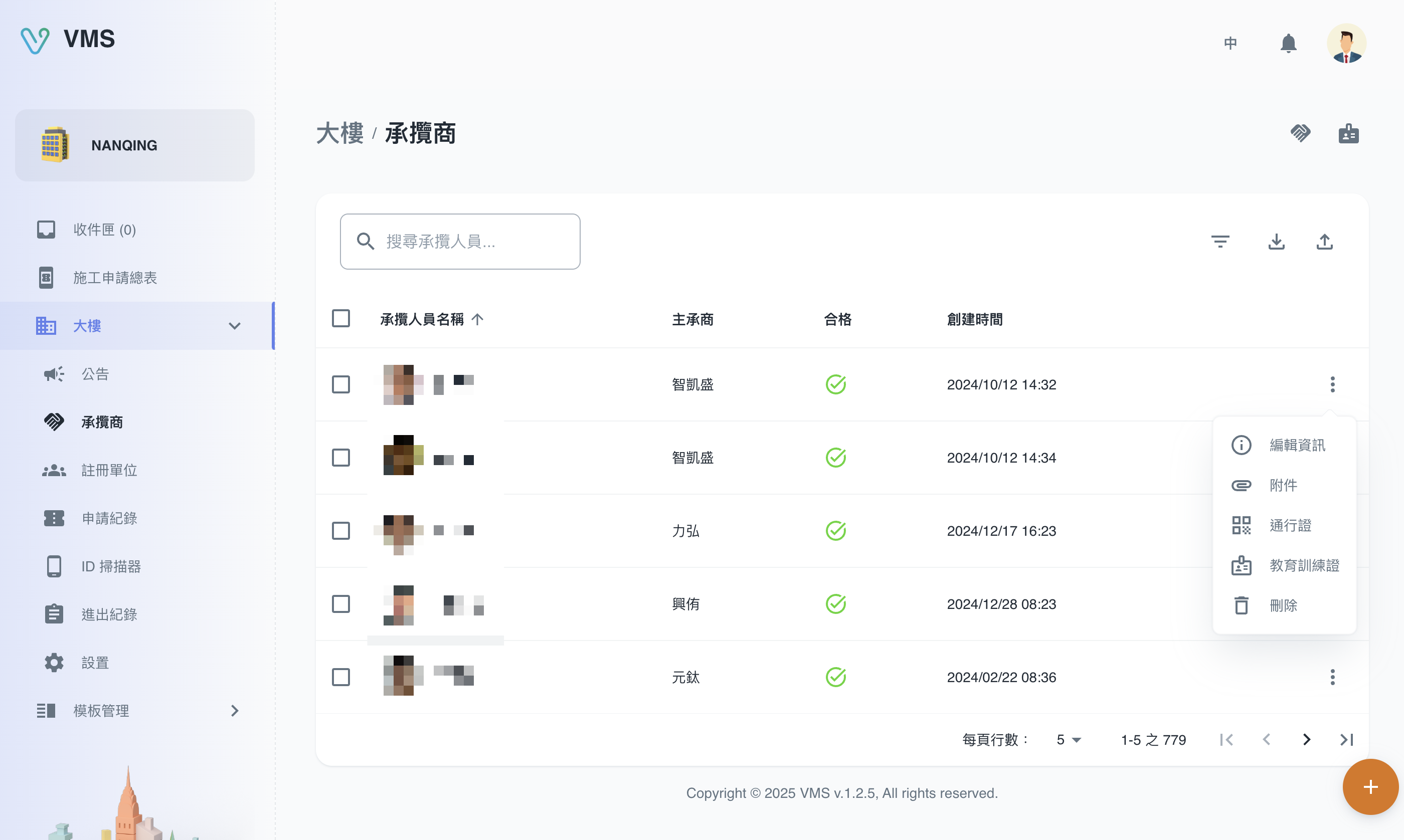
Check the contractor company before adding its personnel, qualifications, and required evidence.
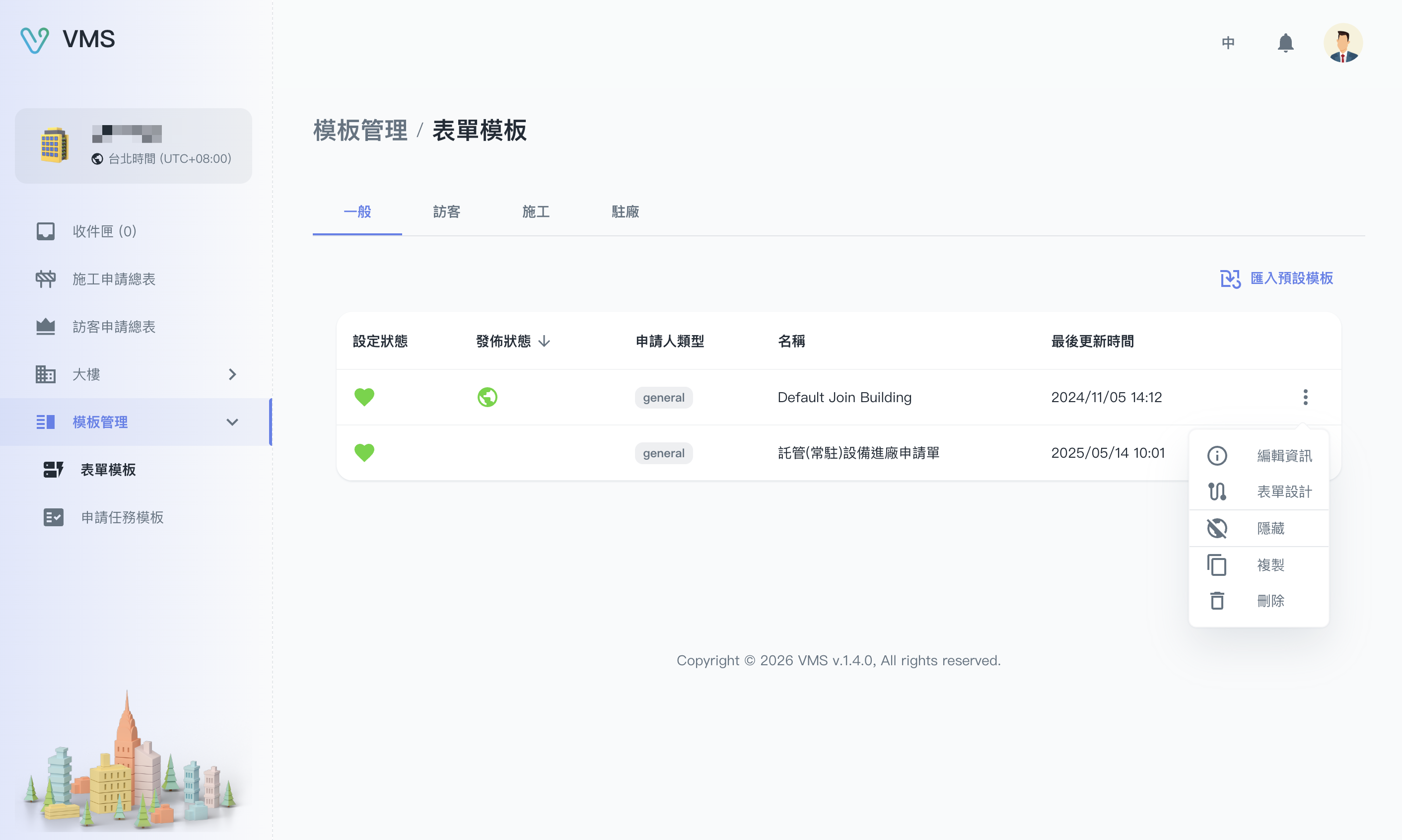
Choose a suitable form template, then open its available menu to design or copy the form.
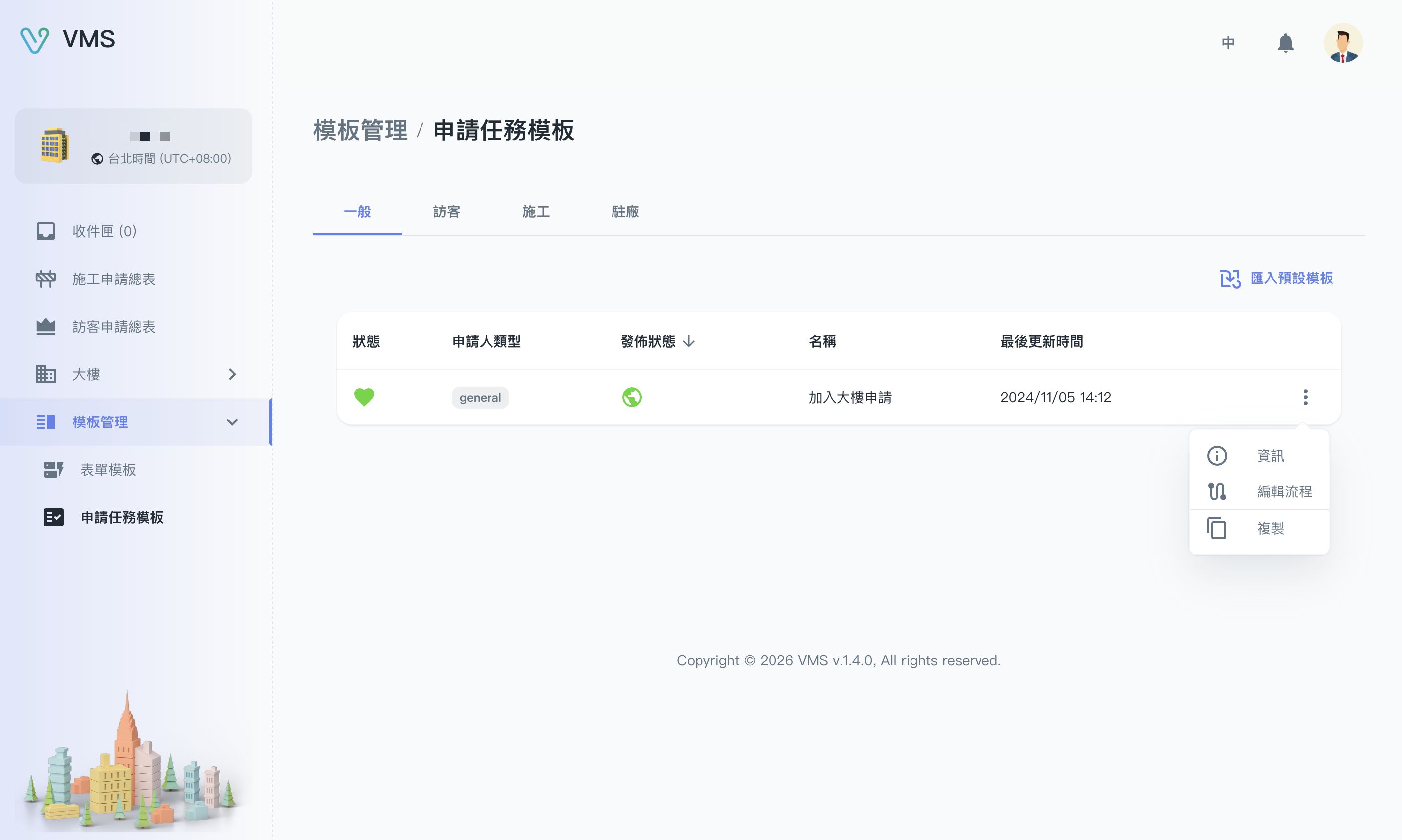
Choose the application type, then use the flow action to arrange its forms. Available menu actions depend on your account.
This earlier screenshot illustrates the feature. The current layout and button labels may differ.
- In Contractors, check companies, personnel, qualification, and required attachments, including expiry.
- In Building Settings, confirm floors, areas, and entry requirements.
- Open Template Management > Form Templates. Import or copy a suitable form and configure questions, approvals, and attachments.
- If only certain work needs extra information, create the work-selection question before adding conditions to later questions or sections.
- In Task Templates, check the bound forms, order, and optional settings. Add a condition in the flow when an entire form should depend on an earlier answer.
- Confirm the template is valid and available for the correct application type. If publishing or basic-information editing is unavailable, ask the system maintainer for help.
Check the result: building data and application rules are prepared. Have a tenant follow the Tenant route and check that the applicable forms match the intended scenario.
Details: Form Templates and Task Templates.
Someone is arriving today: check the request and record access
Scenario: a request needs your approval, or on-site staff need to confirm today’s arrivals.
- 1. Check application details
- 2. Check today’s visitors
- 3. Record actual access
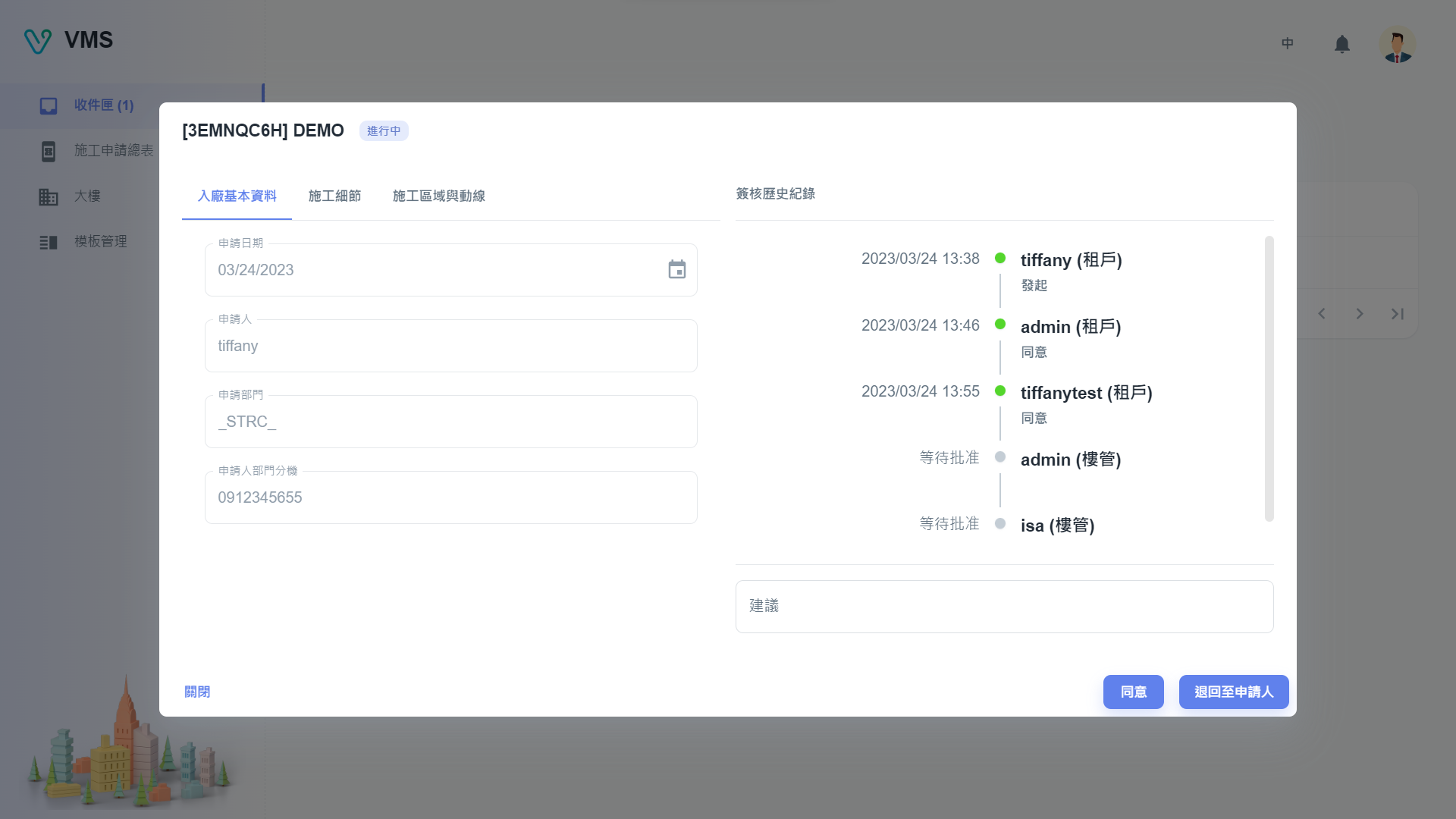
Read people, dates, attachments, and previous decisions before using an available approval action.
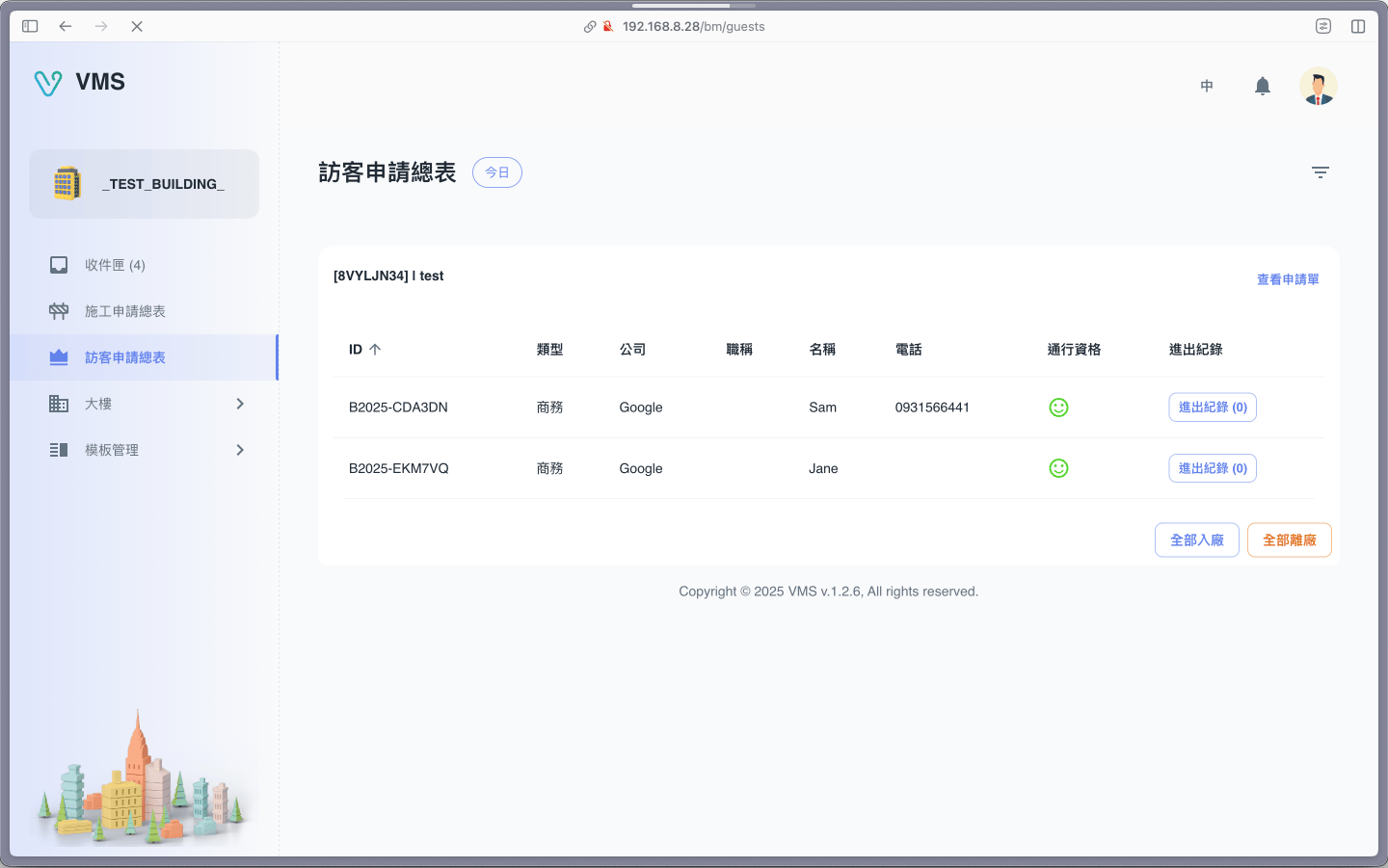
Find the visitor and check eligibility before opening access records. Newer entry-document and note features are explained in the guide.
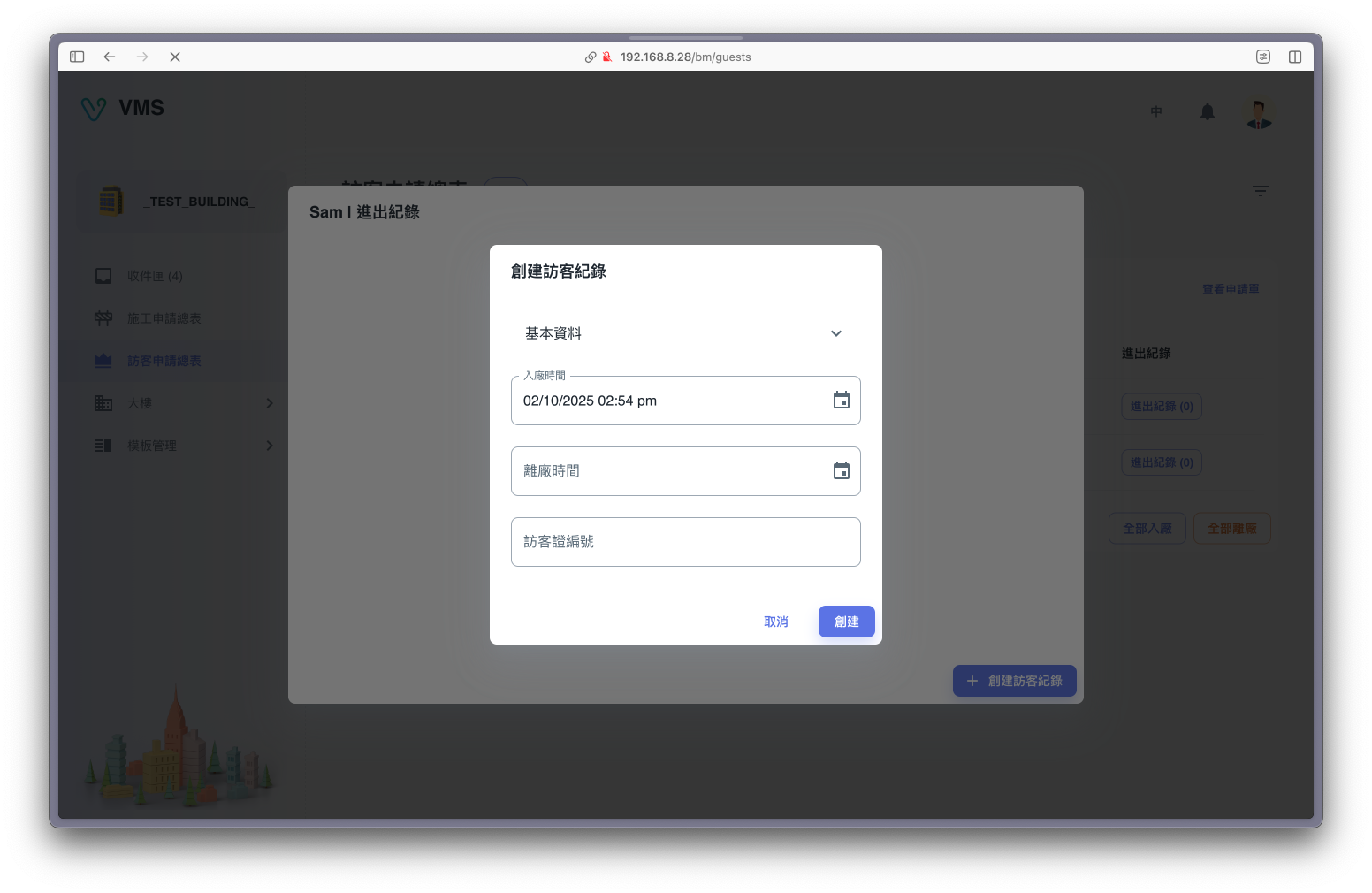
Confirm the person and actual entry or exit before recording an event according to site procedures.
This earlier screenshot illustrates the feature. The current layout and button labels may differ.
- Open the ticket from Inbox when your approval is needed. Check the building, people, dates, content, and attachments.
- Review progress and history, then use an available approve, reject, or return action. Enter a suggestion when required, within the 30-character limit.
- Use Construction Applications for work requests or Guest Applications for visitors. Set dates and filters before finding the request.
- Before entry, check application status, eligibility, and required documents. Open relevant note or toolbox meeting details when present.
- Once entry is confirmed, record check-in according to site procedures. Record check-out when the person leaves.
Check the result: application review and actual access have their own records. Look up past activity in Access Records; confirm filters before exporting a handover list.
Next: Inbox, Guest Applications, and Construction Applications.